Automatically sort images into folders on Windows: by date, by type, or by what is in the picture
Sorting pictures into folders by date is easy and free. Sorting them by what they show is harder. Which method fits which folder, the free options for each, and how to sort a folder of illustrations into folders by character.
First decide what "sorted" means for this folder
There are three common ways to sort pictures into folders, and they need different tools:
| Sort by | Good for | Free option |
|---|---|---|
| Date | Camera and phone photos | File Explorer grouping, or a photo manager such as digiKam that files photos into year and month folders on import |
| File type or source | Separating screenshots, photos and downloads | File Explorer search (kind:=picture) and sorting by type |
| What is in the picture | Illustrations, fan art, AI images, saved art | Taggers help with labels; turning them into folders needs your own rules |
Date works for photos because the camera records when each one was taken. It fails for saved art: a picture you downloaded today may have been drawn five years ago, and a set saved over three weeks ends up in three folders.
Sorting by date or type for free
- Look first: in File Explorer, open the folder and use Sort, then Group by, to group the view by date or type.
- Move into dated folders: photo managers like digiKam can copy camera photos into year and month folders as they import them.
- Pull pictures out of a mixed folder: search
kind:=picturein the folder, select all and move them to one place first.
If your folder is mostly camera photos, stop here. That is all you need.
Sorting by what is in the picture
For drawings the useful folders are usually per character or per series. No free built-in tool does that. The usual workarounds:
- Tagger plus script: a tagger such as WD14 writes tags for each image, and a script moves files by tag. It breaks on original characters, pictures with two characters and images with no clear tag.
- By hand: reliable, but it takes a weekend for a few thousand images.
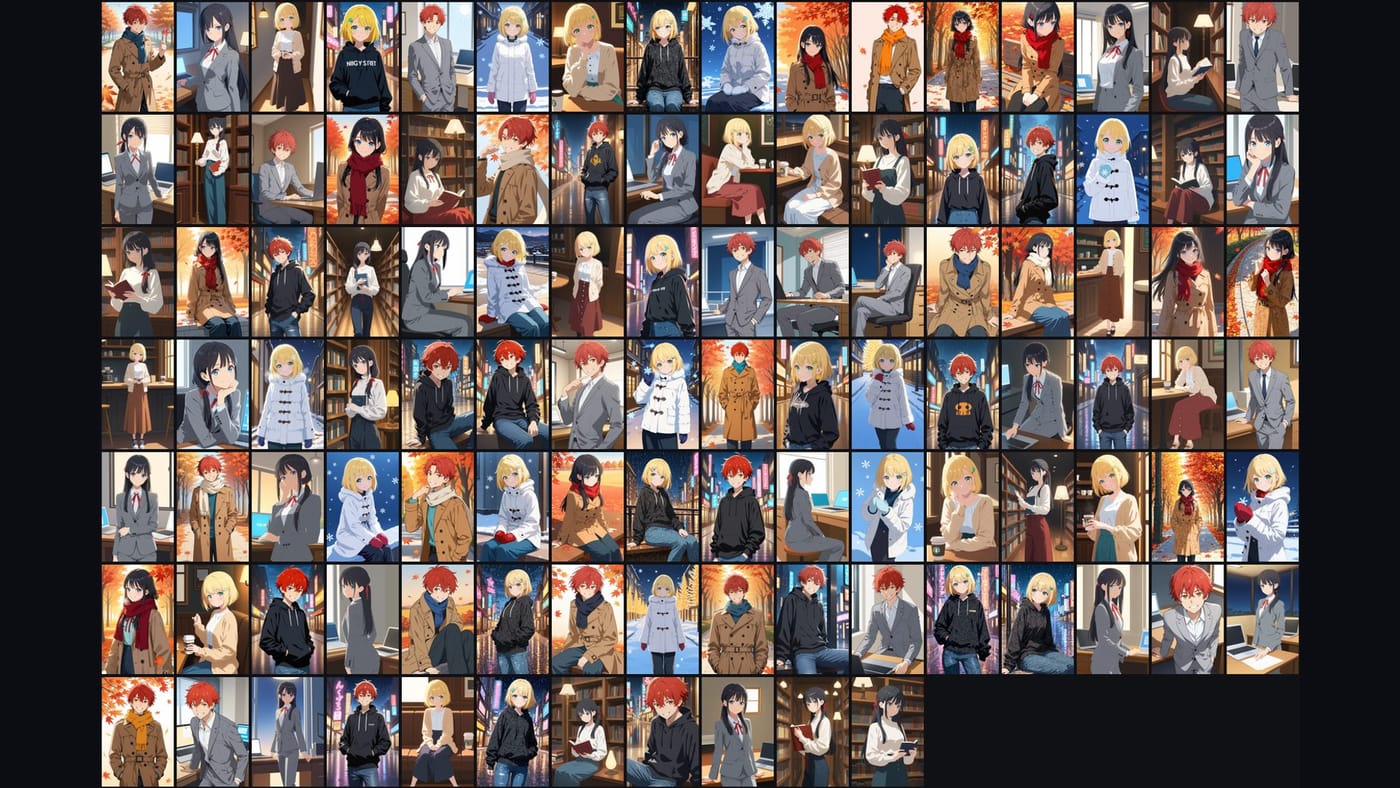
How Art Sorter sorts into folders
- Drop the folder (or a zip, 7z or rar file) on the window. Choose copy to leave the originals untouched, or move.
- Art Sorter looks at every picture. Camera photos (by their camera data) and screenshots go to their own folders. Copies of the same picture go to a duplicates folder.
- The illustrations are lined up with the same character together, then the same scene, then in sequence.
- Press Auto folders. Each run of the same character becomes one folder. Adjust where a group starts or ends, click a group to give it a name, then confirm. One Undo (Ctrl+Z) reverts everything.
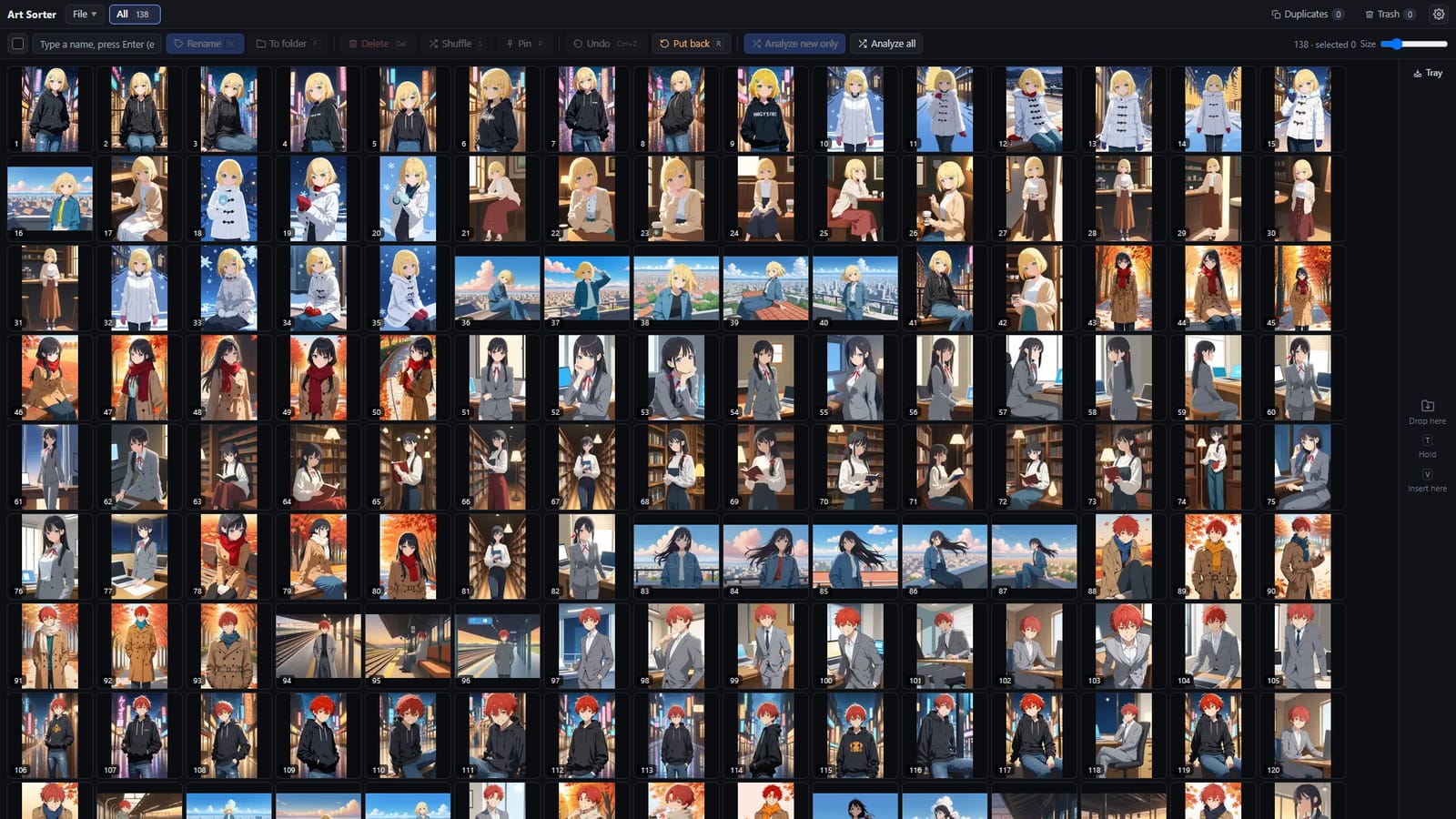
The output is plain Windows folders: one per group, plus Duplicates, Camera photos and Screenshots. Images you leave out of the groups are collected in one more folder. Any other program can open them, and in move mode one click puts everything back where it was.
What to know before you start
- It does not know character names. It knows which images show the same character; naming is one action per group.
- It is built for drawings, fan art, anime screenshots and AI images, not for sorting family photos by person.
- Windows 10 / 11. Your image files stay on your PC; the order is matched by our server from descriptions of the images (numeric fingerprints and tag words), so sorting needs an internet connection.
Common questions
Can Windows sort pictures into folders automatically? Windows can group and sort the view by date or type, but it does not move files into folders by what the pictures show.
How do I sort images into folders by date for free? Use a photo manager such as digiKam, which can create year and month folders when importing camera photos.
Can I sort anime or fan art images into folders by character? Yes. Art Sorter groups the same character together even across different artists, and Auto folders turns each group into its own folder after you check it.
What happens to duplicates? They are moved to a separate duplicates folder, never deleted. You check the pairs and empty it yourself.