How to organize art reference images on Windows (when the folder has thousands)
A reference folder only helps if you can find the pose or outfit you need in seconds. How artists keep references usable, what PureRef, Eagle and tags each do, and how to sort a pile of illustration references automatically.
Why reference folders stop working
Most artists start the same way: save anything useful into one folder called "ref". A year later it holds 4,000 files named IMG_2231.jpg, download (14).png and 9f3a1c.webp, and finding "that hoodie from below" means scrolling for ten minutes.
The problem is not the number of images. It is that nothing in the folder says what each image is for. A reference library needs two things: similar images next to each other, and a way to search by what is in the picture.
Three kinds of tools, three different jobs
| Tool | What it does | What it does not do |
|---|---|---|
| PureRef (pay what you want) | Keeps references on a board next to your canvas while you draw | Organize the files on your drive |
| Eagle (paid license) | A polished library: browser extension, tags, smart folders, color filters | The first sort of a pile you already have; you add each image or tag yourself |
| Art Sorter (try up to 300 images free) | Sorts an existing folder of illustrations by character and scene, tags every image, lets you search by tag | Work as a drawing board; it is a sorter, not a canvas tool |
They work well together. Sort the pile once, keep it searchable, and drop the images you need for today onto your board.
Step 1: Put similar references next to each other
Scrolling works when similar images sit together. Sorting by file name or date scatters them, because you saved them weeks apart.
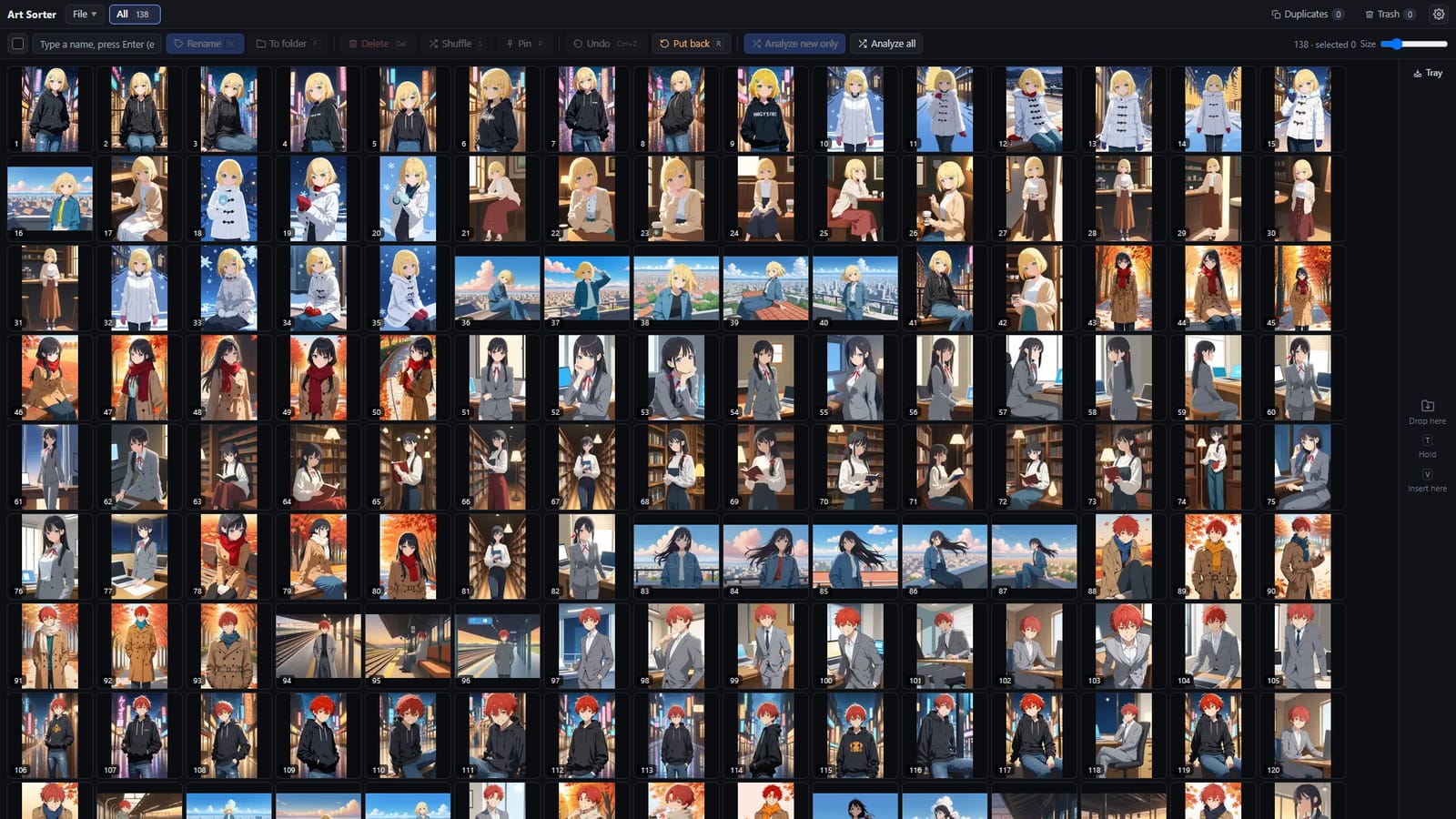
Art Sorter looks at the pictures instead of the file names. Images of the same character land together, and inside that group the same outfit or scene stays side by side. A folder of 4,000 mixed references turns into one line you can scan in a few minutes.
Step 2: Make it searchable by what is drawn
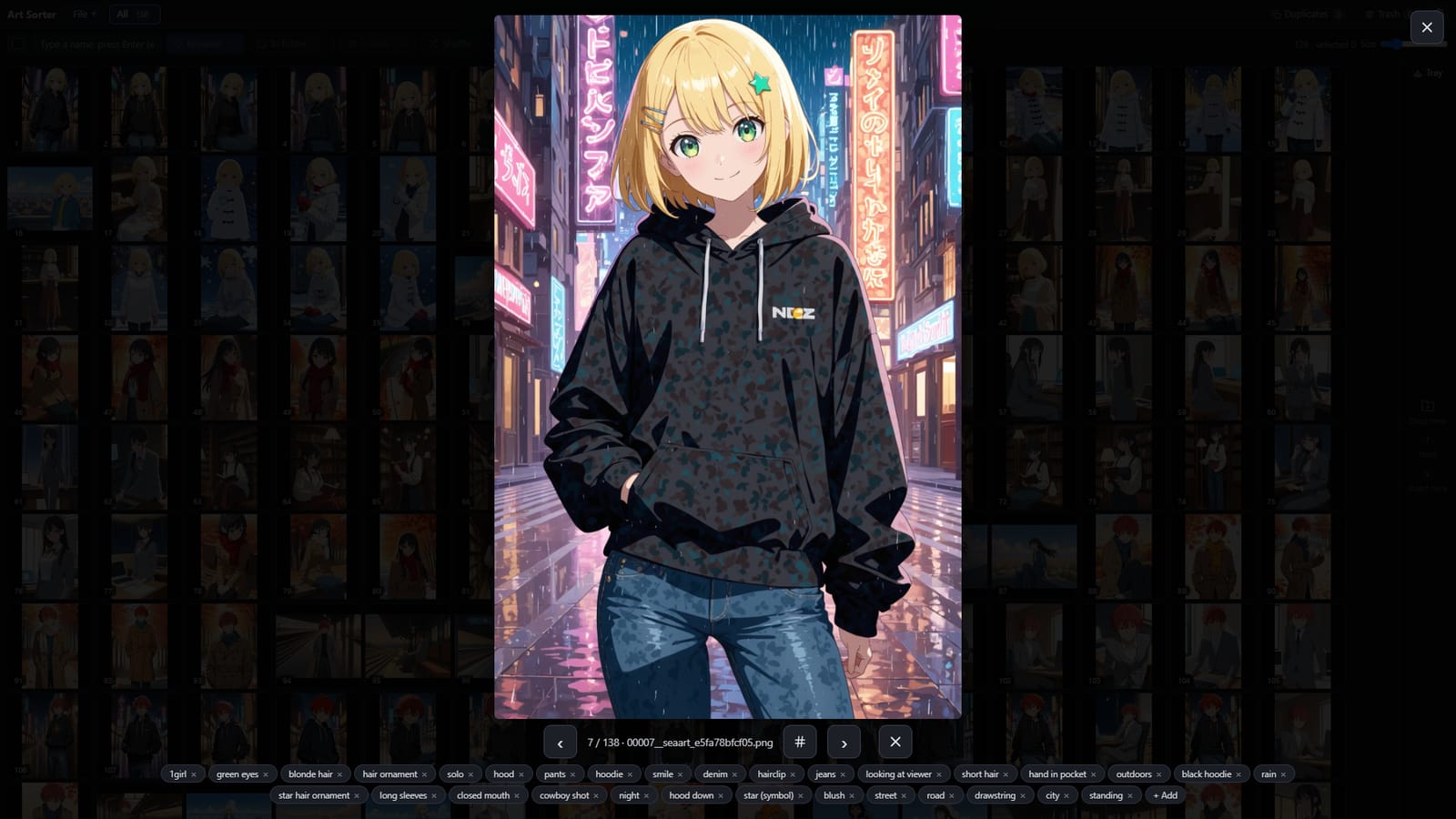
Every image gets tags from an on-device tagger: things like sitting, hand in pocket, from below, hoodie, rain or cowboy shot. You can:
- Press Ctrl+F and type a tag. Several words narrow it to images that match all of them.
- Click a tag to see only the images that have it.
- Line the whole folder up by the tags you pick, in the order you pick them.
- Add your own tags, such as
lighting studyorpose for chapter 3.
Step 3: Keep the folder structure simple
- One folder per project or theme, not per day.
- Name a group once and the files inside are renamed together, so the name still makes sense in File Explorer.
- Keep copies out: resized and re-saved versions of the same picture go to a separate duplicates folder for you to check.
- New references later? Add them to the folder and analyze only the new ones. They are slotted in next to what they resemble.
The result stays as plain Windows folders, so PureRef, Clip Studio Paint, Krita or any image viewer can open it. If you use Eagle, the tags can be exported for Eagle too.
What to know before you start
- Art Sorter is built for drawings: illustrations, fan art, anime screenshots and AI images. For photo references such as landscapes or real poses, a photo manager or manual tags will serve you better.
- It does not know character names. It knows which images show the same character, and you type a name once per group.
- Windows 10 / 11 only. Your image files stay on your PC; the order is matched by our server from descriptions of the images (numeric fingerprints and tag words), so sorting needs an internet connection.
Common questions
What is the best way to organize art references? Keep similar images together and make them searchable by content. Sorting by character and scene plus tag search covers both, without renaming files by hand.
Can I use Art Sorter with PureRef? Yes. Art Sorter organizes the files on your drive; PureRef shows the ones you pick on a board while you draw.
Will it change my original files? In copy mode, no. In move mode everything can be put back in the original folders in one click.
Are my references uploaded anywhere? No. Image files are never uploaded. To match the order, descriptions of the images (numeric fingerprints and tag words) are sent to our server.