How to organize thousands of AI-generated images (Stable Diffusion, NovelAI, ComfyUI)
Output folders fill up with numbered PNGs fast. What works by hand, what the usual tools do and do not do, and how to sort by character and scene automatically.
Why AI output folders get out of control
Image generators save every result with a counter and a seed, like 00123-2847361.png. A few weeks of use and the folder holds thousands of files. The same character is scattered across dozens of sessions, and near-identical variants of one prompt sit next to completely unrelated images.
Date folders tell you when you made something. They do not tell you what is in it, and "what is in it" is how you actually look for an image later.
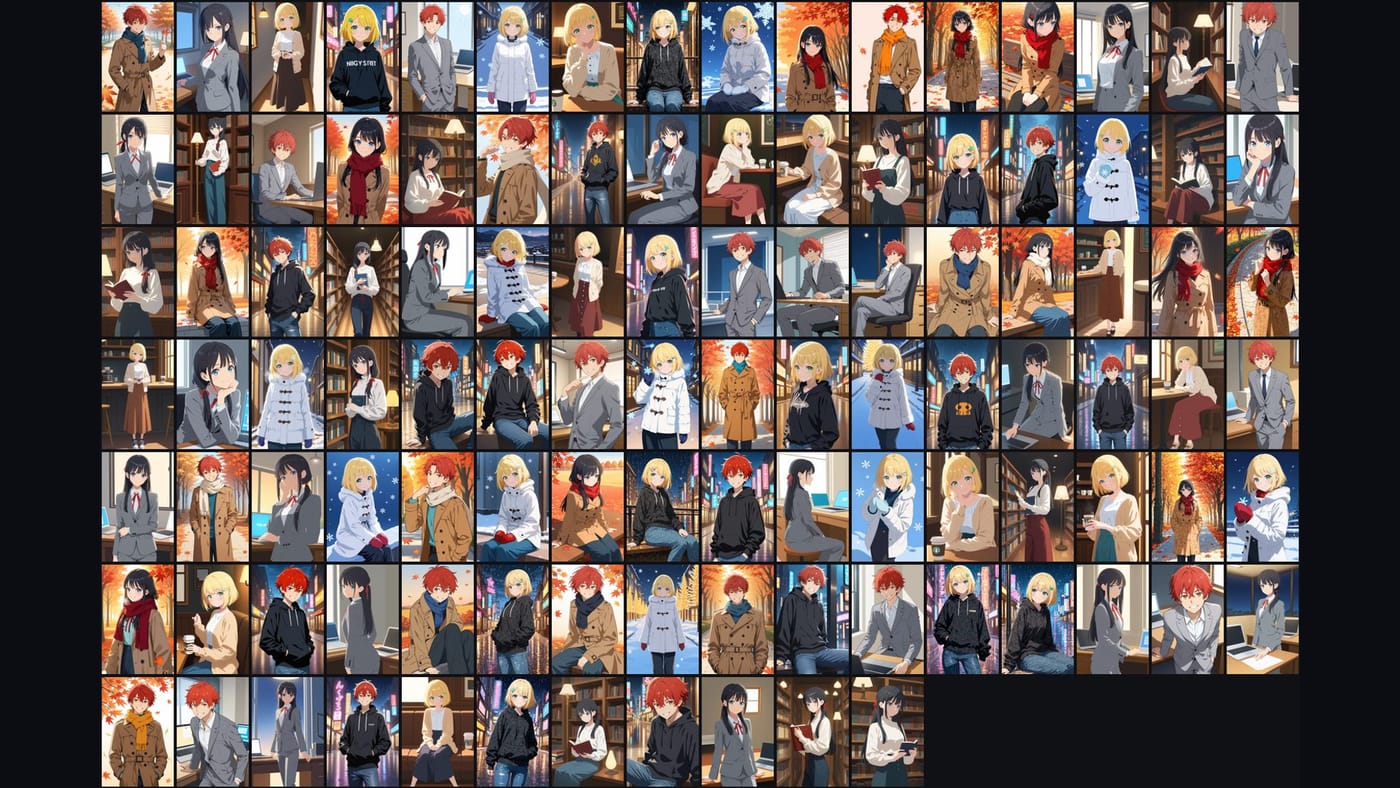
Option 1: sort by hand
- Switch Explorer to large icons.
- Make a folder per character.
- Drag images in, then split each character folder by scene or outfit.
- Delete the near-identical rejects as you go.
This works up to a few hundred images. The problem is what happens next: new images arrive every day, and each batch means going through the pile again. Most people stop here and leave the folder as it is.
Option 2: search the prompt metadata
Most generators write the prompt into the PNG file. Image browser extensions for the WebUI and similar tools let you search that text, which is handy for finding "the one with the red scarf".
The limits show up quickly:
- Prompts change from session to session, so one character ends up under many different prompts.
- Metadata disappears when an image is re-saved, converted or passed through a chat app.
- Search finds images. It does not put the folder in order.
Option 3: automatic tagging
Taggers trained on anime-style art can add tags such as hair color, clothing and pose to every image. That makes images searchable in tag-based managers like Hydrus or Eagle.
It usually means installing Python or a WebUI extension, and tags still leave you with a flat pile. Knowing that 400 images have "silver hair" is not the same as having them grouped by who they are.
Option 4: sort by what is in the picture
This is the approach Art Sorter takes. You drop a folder onto the window and it lines the images up in one order: same character together, then same scene, then in sequence. There is no tagging and nothing to install beyond the program.
- Characters are matched with a model trained on illustrations, so the same character stays together even across different sessions and artists.
- Copies, including resized and re-saved versions, are set aside in their own folder so you can compare and decide.
- New images added later are slotted in next to the ones they resemble. The order you already fixed stays as it is.
- Everything runs on your PC. Nothing is uploaded, and it keeps working with the internet off.
A real run for scale: a demo set of 113 images (3 characters, 4 scenes each) was sorted in about two and a half minutes on a laptop, with 2 images out of place at the end. Those you fix by dragging.
Art Sorter looks at the image itself, not the prompt, so it also works on images whose metadata is gone.
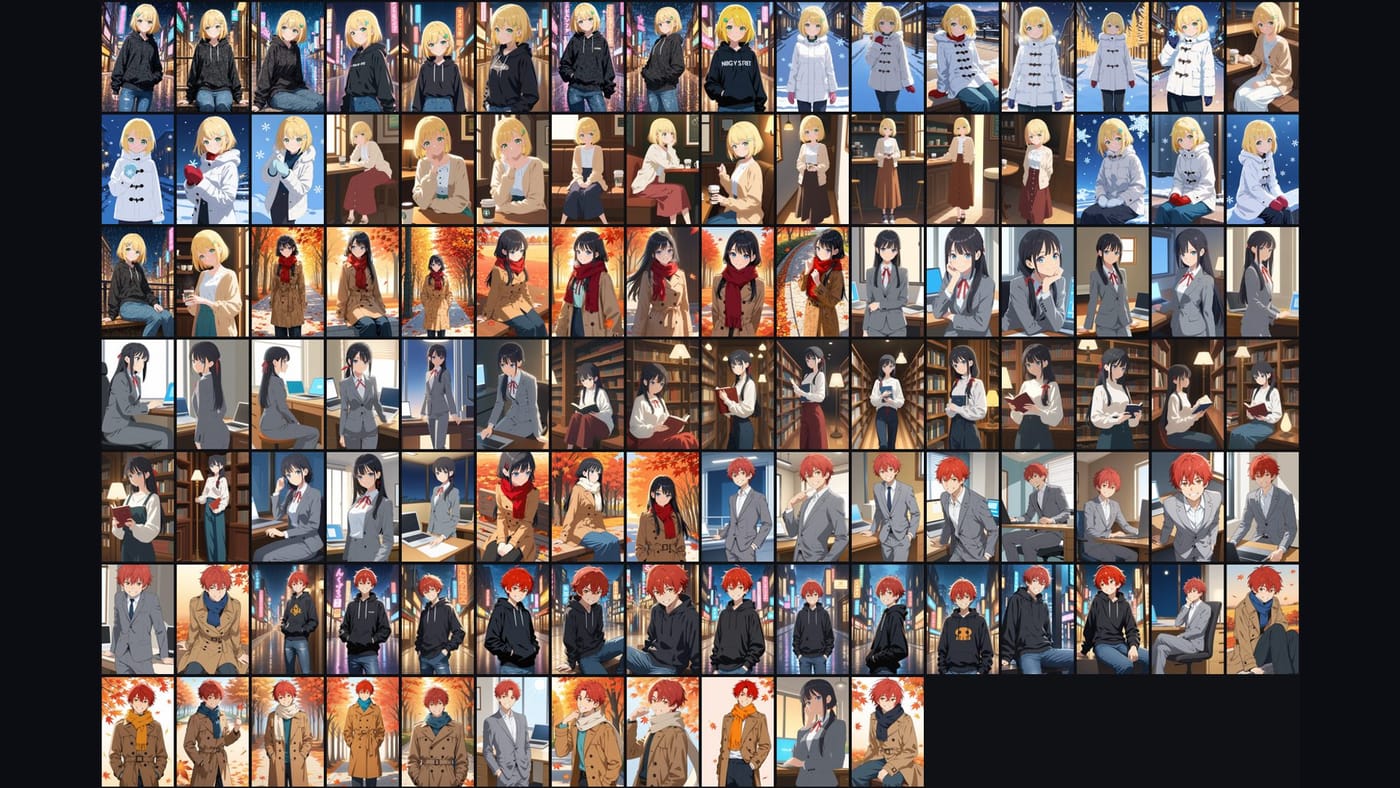
A routine that stays tidy
- Treat the generator's output folder as an inbox.
- Every week or so, add the inbox to your sorted collection. Only the new images are analyzed.
- Name a group once. Select the images, type the name, and the files are renamed together.
- Pin the sets you have arranged by hand so later sorting leaves them alone.
- If you also use Hydrus, Eagle, digiKam or XnView MP, export names and tags to them. The original files are not modified.
Common questions
Does it work with NovelAI, Midjourney or ComfyUI output? Yes. It sorts by what is drawn, so the generator does not matter.
Will it change or delete my originals? In copy mode the originals are untouched. In move mode everything can be put back into the original folders in one click.
How many images can it handle? Tens of thousands in one run, with pause and resume.