AI image sorter for Windows: what "automatic" really does (and does not)
A plain explanation of what an AI image sorter can do on a Windows PC in 2026: group by character, split by scene, put copies aside, keep a sequence. What it cannot do, what to check before you trust one, and how Art Sorter handles each point.
What people mean by "AI image sorter"
Search for an image sorter for Windows and you get three very different kinds of programs under one name:
- Photo managers (Windows Photos, digiKam, XnView MP): albums, dates, faces of real people, metadata. Great for camera photos, weak on drawings.
- Tag-based libraries (Hydrus, Eagle): you or a tagger add tags, then you search. Powerful once the tags exist, but the sorting itself is still your job.
- Content sorters: the program looks at each picture and puts similar ones together without tags. This is the newest kind, and the one this page is about.
The difference matters because "automatic" means something different in each. A tagger that labels 400 images "silver hair" has not organized anything yet.
What a content sorter can do today
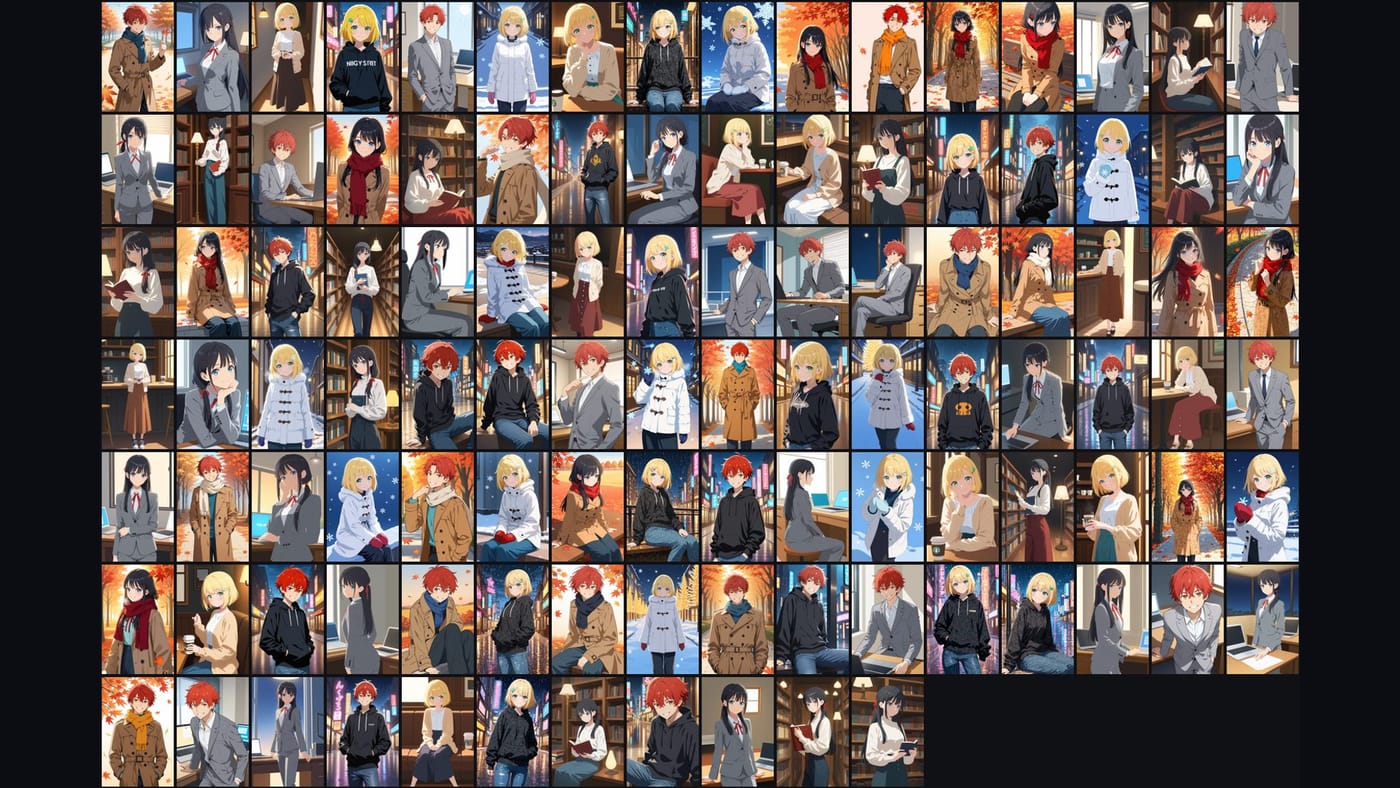
- Group by character. A model trained on illustrations compares faces, hair and outfits, so the same character from different sessions or artists lands together. It does not know the character's name; it knows "these are the same person".
- Split by scene. Inside one character, images from the same place or outfit stay next to each other.
- Put copies aside. Exact duplicates and re-saved or resized versions go to a separate folder so you can compare before deleting.
- Keep a sequence. A set that tells a story in several images is kept in order instead of being scattered by file name.
- Add later without re-sorting. New images are analyzed alone and slotted in next to what they resemble.
What it cannot do
- It cannot name characters. Naming is one action per group, done once by you.
- It cannot read your taste. Two people would file the same 50 images differently. A good sorter gets the structure right and leaves the last 5% to a drag.
- It cannot fix a bad source. Screenshots, memes and photos mixed into an art folder need to be pulled out first, which the better tools do on their own.
Five things to check before you trust one
| Check | Why it matters |
|---|---|
| Runs on your PC, no upload | Your images never leave the machine, and it works with the internet off. |
| Copy mode for the first run | You can look at the result next to the untouched original. |
| One click to undo | Move mode should put everything back into the original folders. |
| Handles tens of thousands | Pause, resume and a visible progress folder, not a frozen window. |
| Plain folders as output | The result should open in any program, not live inside a database. |
How Art Sorter fits
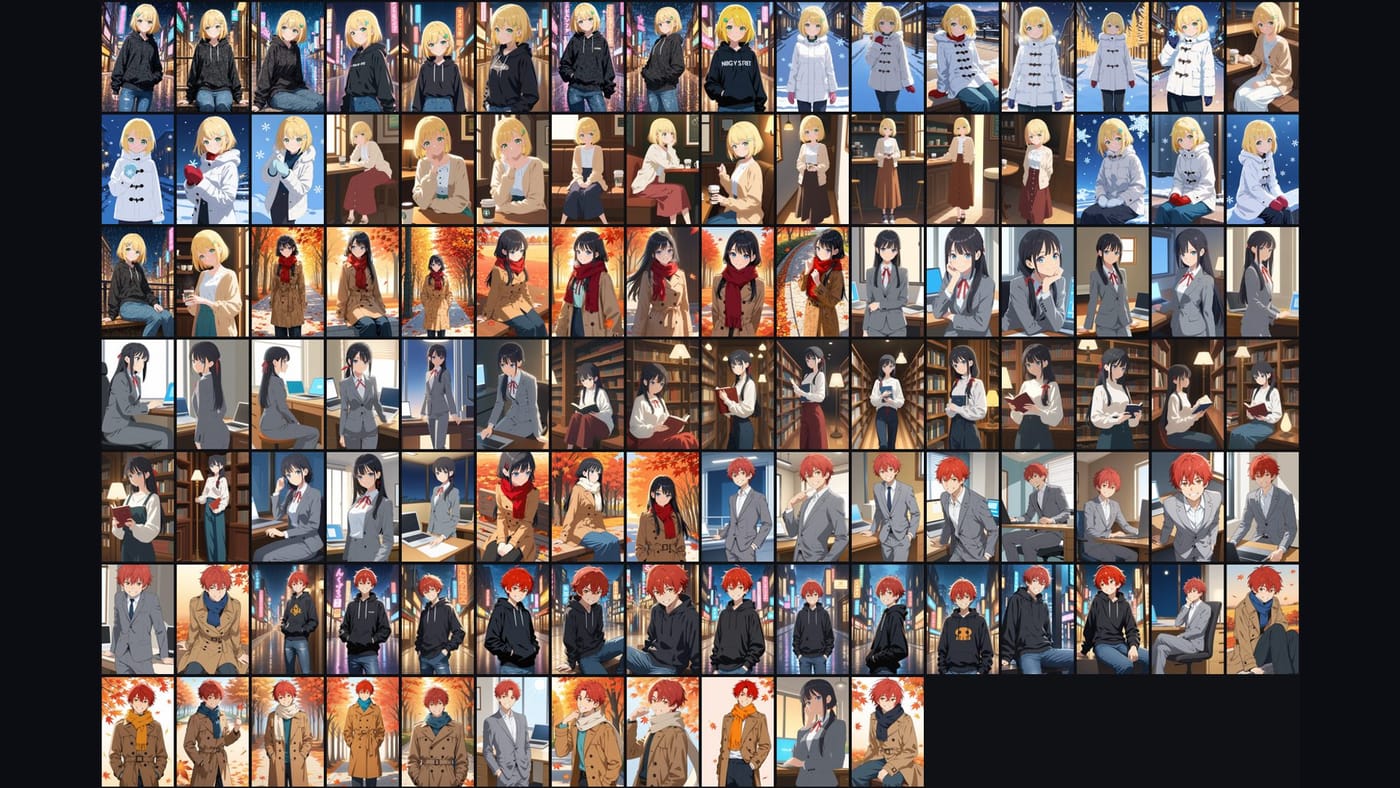
Art Sorter is a content sorter for Windows 10 and 11. Drop a folder on the window and it lines the images up in one order: character, then scene, then sequence, with copies in their own folder. Everything runs locally. The free preview sorts your whole folder and keeps 300 images at full quality, so you can judge the result on your own collection before paying.
Common questions
Is there a free AI image sorter? The free options are taggers and duplicate finders. They help you search; they do not put a folder in order. Art Sorter's preview is free for the whole folder, with the paid version unlocking full-quality output beyond 300 images.
Does it work on photos of real people? It is built for drawings, AI art and fan art. For camera photos a photo manager with face recognition is the better tool.
Will it change my files? In copy mode, no. In move mode the originals go into the sorted folder and can be returned in one click.